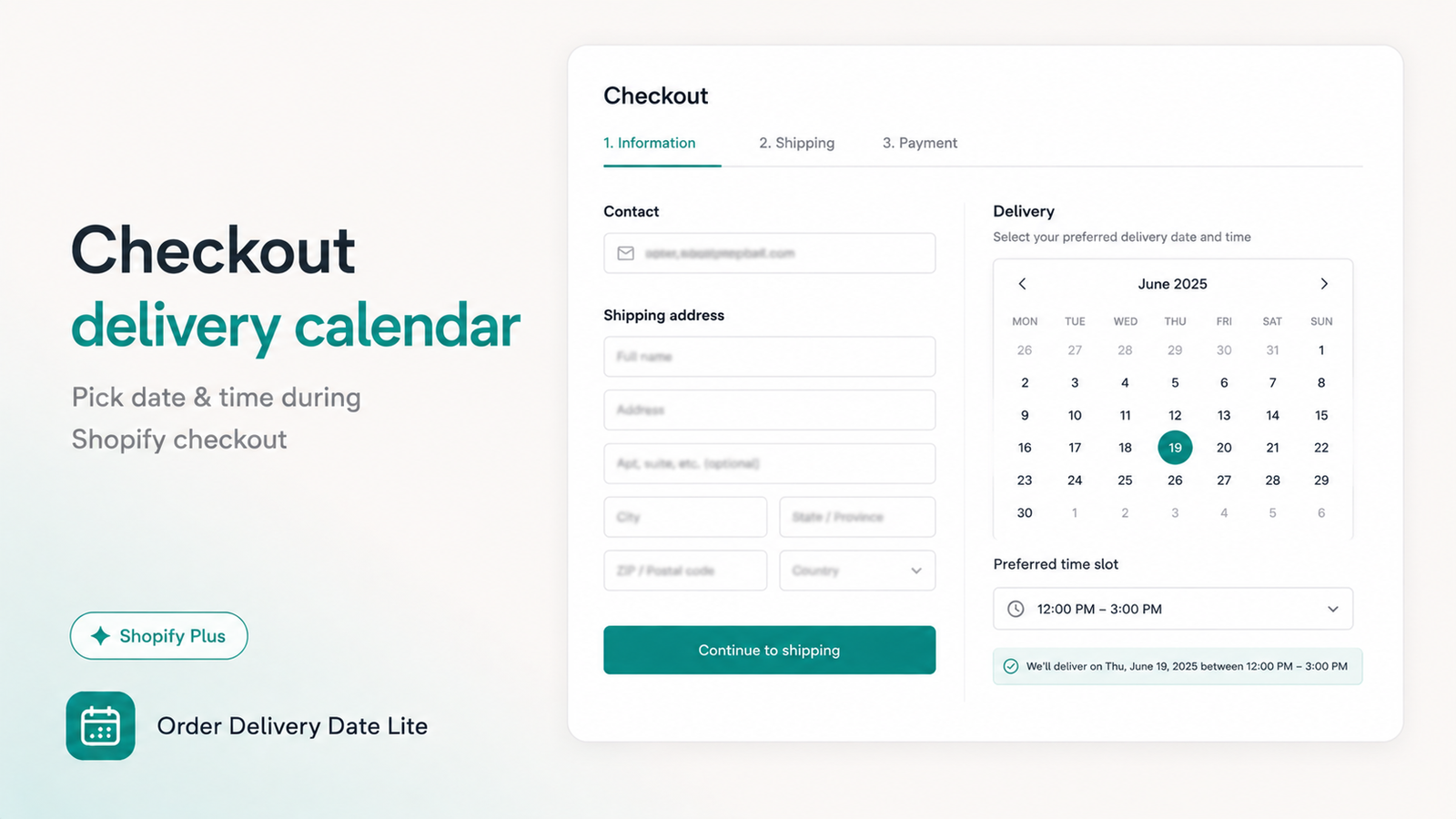
Many merchants start with a cart-page delivery date. On Shopify Plus (or a development store), you can also collect the date during checkout — and recover a missing date on the thank-you page — using Order Delivery Date Lite Pro.
This guide walks through the modern setup. It does not use deprecated Additional Scripts.
What You Need
- Order Delivery Date Lite Pro ($9.99/month, 7-day trial)
- Shopify Plus on a live store (or a development store for testing)
- Access to Checkout editor to add UI extension blocks
Not on Plus? You can still use the cart calendar, cart drawers, blocked dates, time slots, and checkout validation on Basic. Checkout calendar UI blocks are Plus / development only.
Step 1 — Enable Checkout Calendar in the App
- Open the app → Checkout calendar in the menu.
- Enable the checkout delivery calendar.
- Configure labels, blocked days, time slots, and cutoffs (checkout can use its own schedule, separate from cart).
- Optional: hide the cart picker when checkout calendar is on, so customers pick once at checkout.
Step 2 — Add the Block in Checkout Editor
- From Shopify Admin, open the checkout customization / Checkout editor.
- Add the Order Delivery Date checkout calendar block where you want it (commonly near shipping).
- Save and publish the checkout profile.
Step 3 — Link Checkout Validation
Validation lives under Settings → Checkout in the app (available on plans that include it). Enable require date/time, then link the Order Delivery Date Validation function under Shopify Checkout rules so shoppers can’t complete checkout without a selection.
Step 4 — Thank-You Display & Missing-Date Recovery
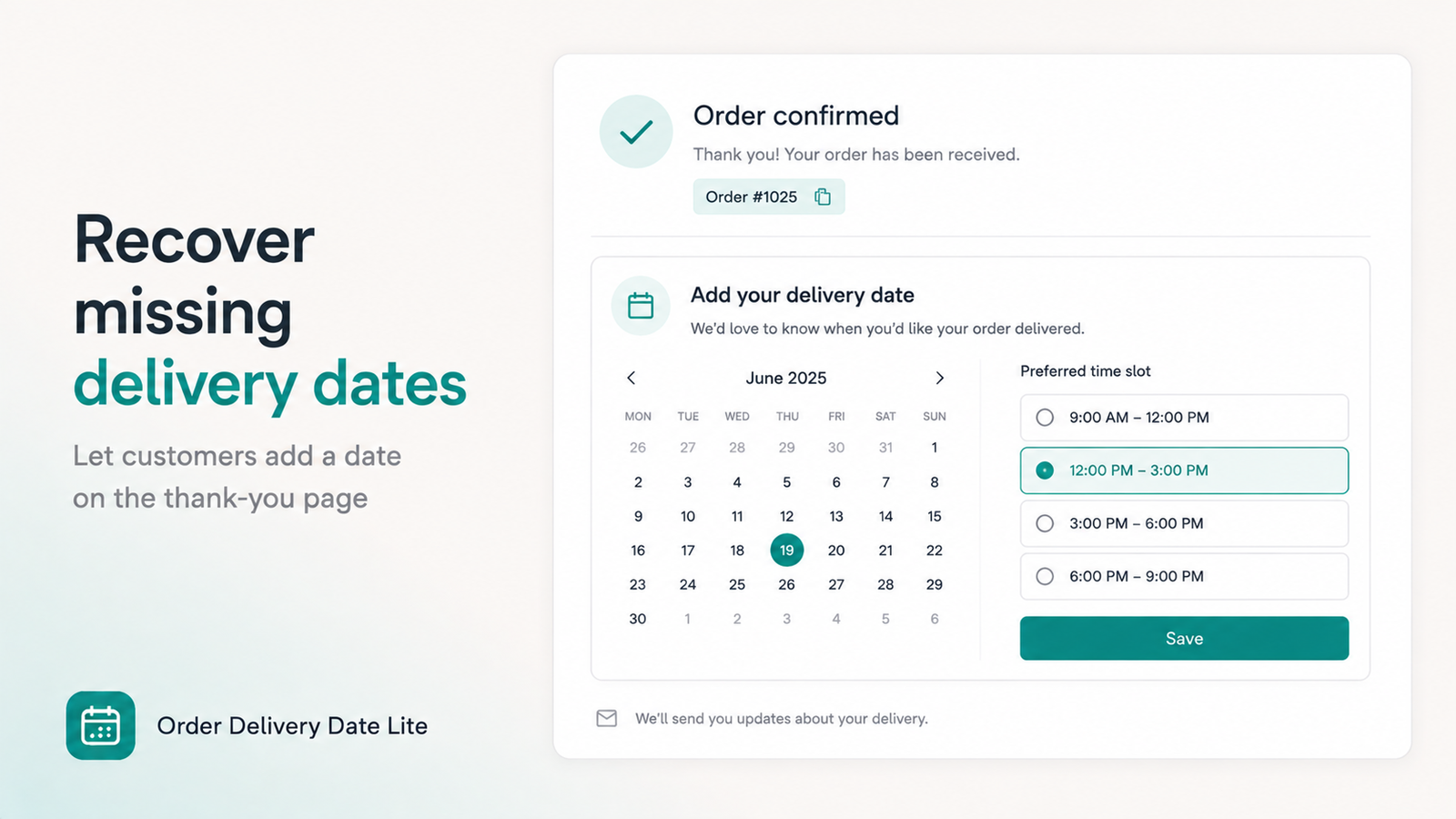
- In Checkout editor → Thank you page, add the app’s display block so confirmed dates show after purchase.
- In Settings → Checkout, enable thank-you missing-date recovery if you want a picker when no date was chosen.
- Add the recovery picker block on the thank-you page (Plus / development).
Do not paste old OrderStatus.addContentBox code into Additional Scripts. Shopify deprecated that path. Use the app’s Thank You UI extensions instead.
Cart vs Checkout — Which Should You Use?
- Cart (or drawer): Best default for most stores. Works without Plus. Customers decide before they enter checkout.
- Checkout calendar: Best when you want the date later in the funnel, or with Shop Pay / checkout-first flows on Plus.
- Both: Possible, but usually hide cart when checkout calendar is enabled to avoid asking twice.
Frequently Asked Questions
Do I need Shopify Plus for a checkout delivery calendar?
Yes on live stores. Development stores can add checkout and thank-you blocks for testing. Cart calendars work without Plus.
Can I use Additional Scripts for the thank-you date?
No. Switch to the app’s Thank You UI extensions.
Which plan includes checkout calendar?
Pro ($9.99/month) includes checkout calendar, thank-you missing-date recovery, method picker, and the delivery stats dashboard.
Ready for checkout calendar?
Start a Pro trial, enable Checkout calendar, then add the blocks in Checkout editor.
Open App Store →